
Install on iPhone
Everything you need to get the Bosca alpha running through Apple’s TestFlight, screen by screen.
🍎 iPhone setup (TestFlight)
Apple's TestFlight app is the official way to run pre-release apps. You'll install TestFlight once, then Bosca inside it.
-
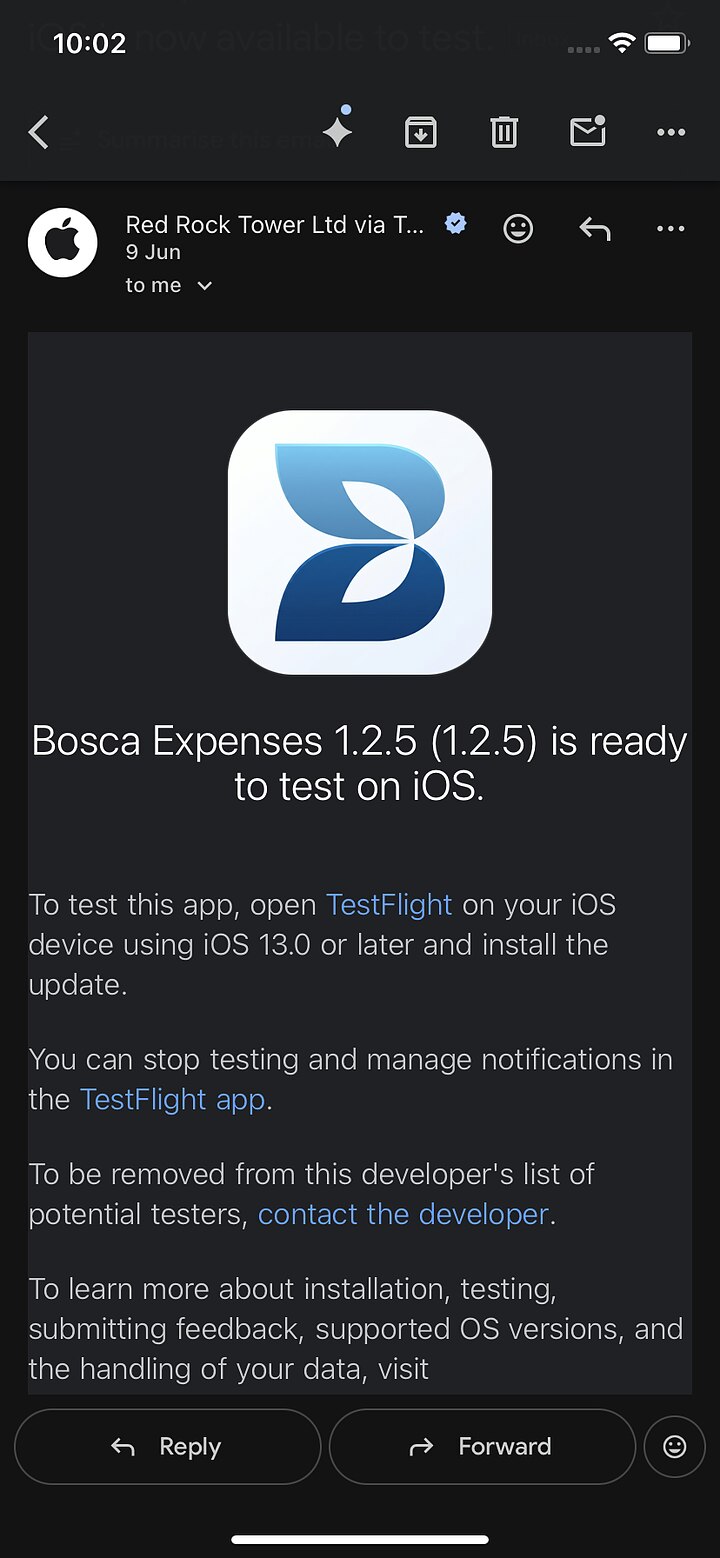
Find your invitation email
Look for an email titled something like "Red Rock Tower Ltd has invited you to test Bosca Expenses", sent by TestFlight / App Store Connect. Check your spam folder if it hasn't arrived.
-
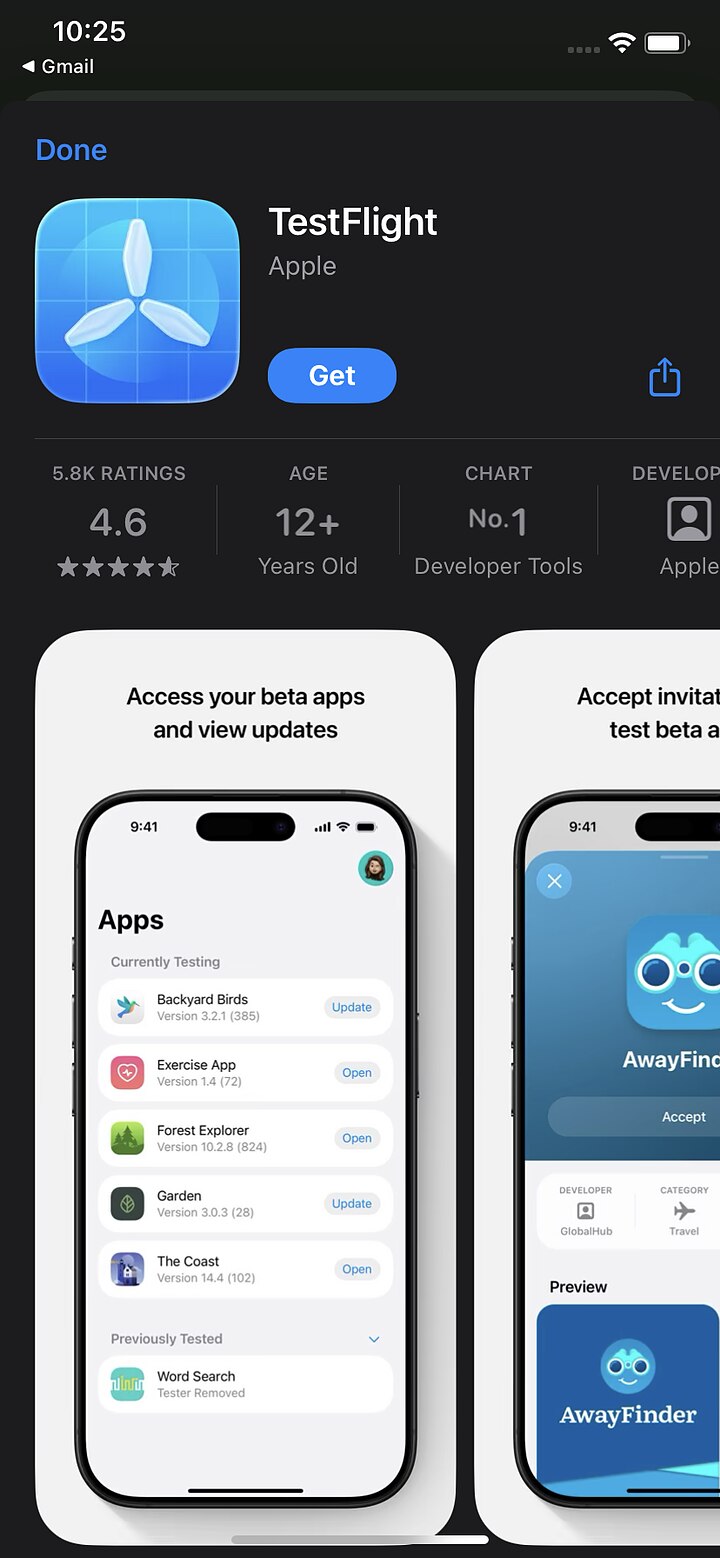
Install TestFlight
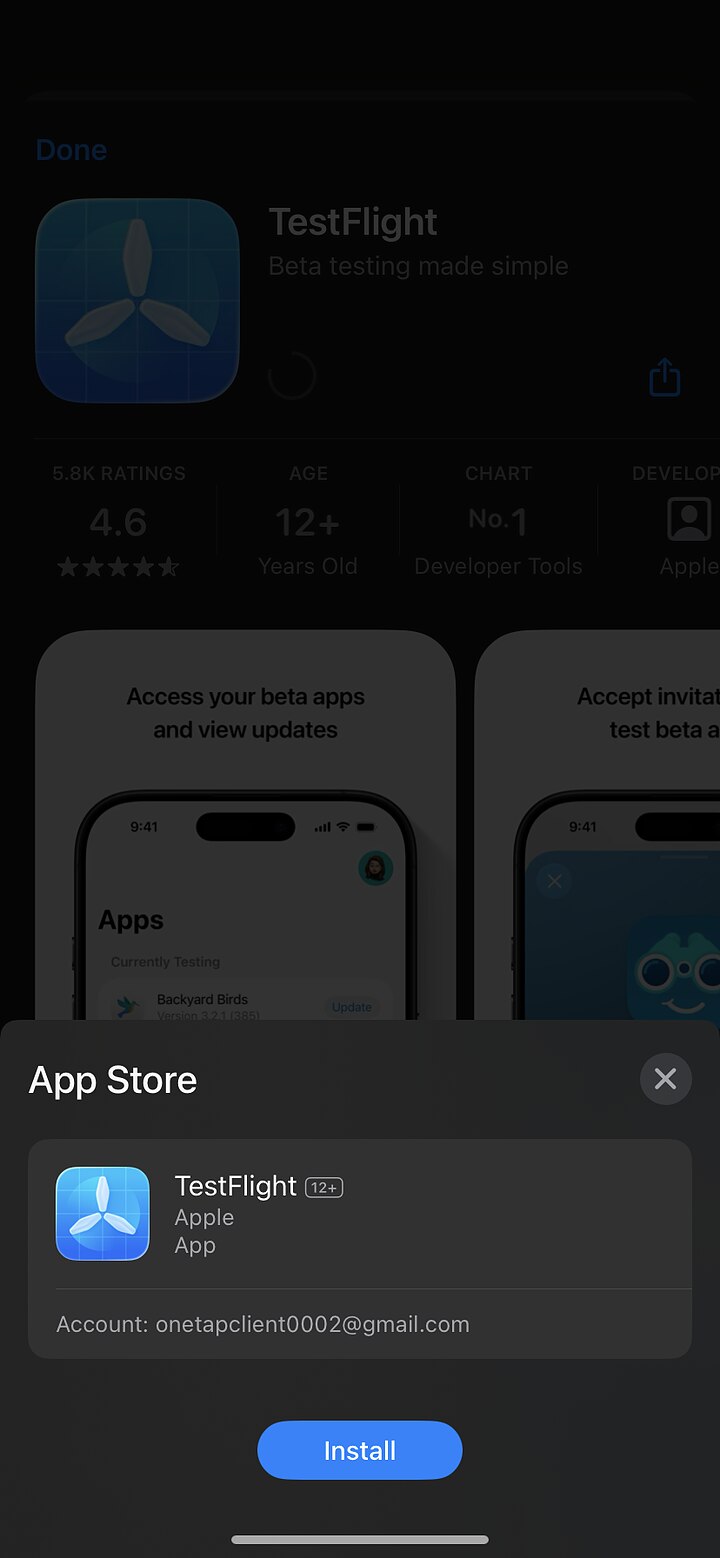
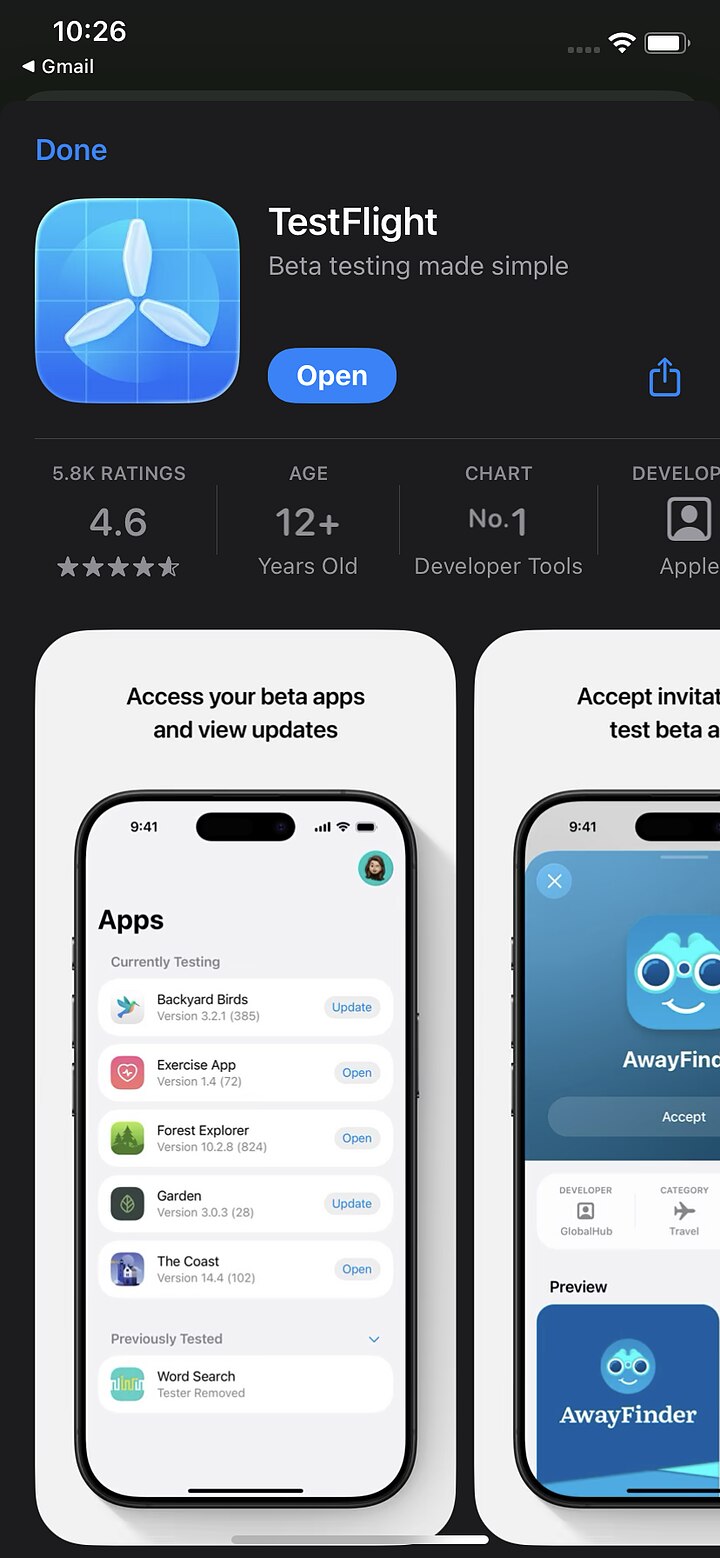
On your iPhone, open the App Store and install the free TestFlight app (made by Apple). If you already have it, skip ahead.
-
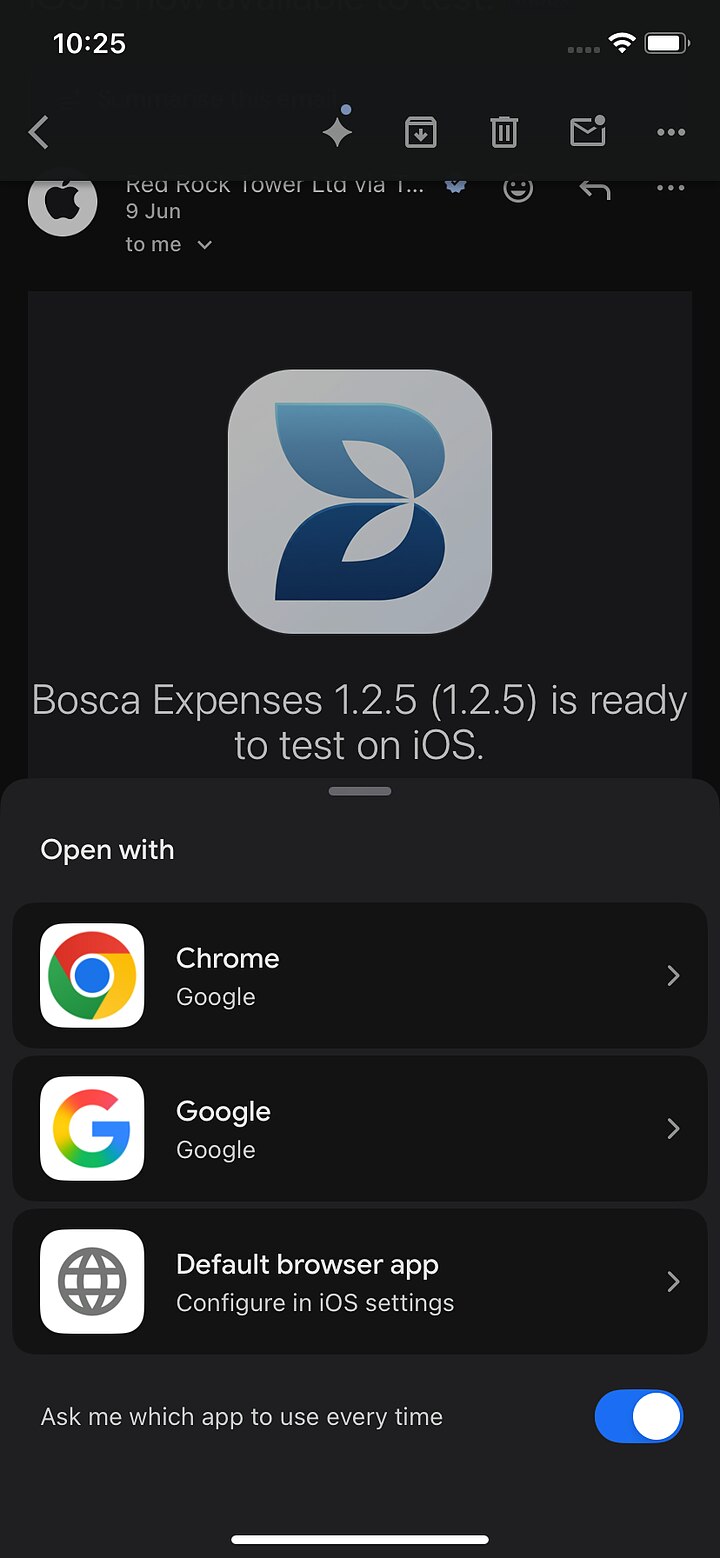
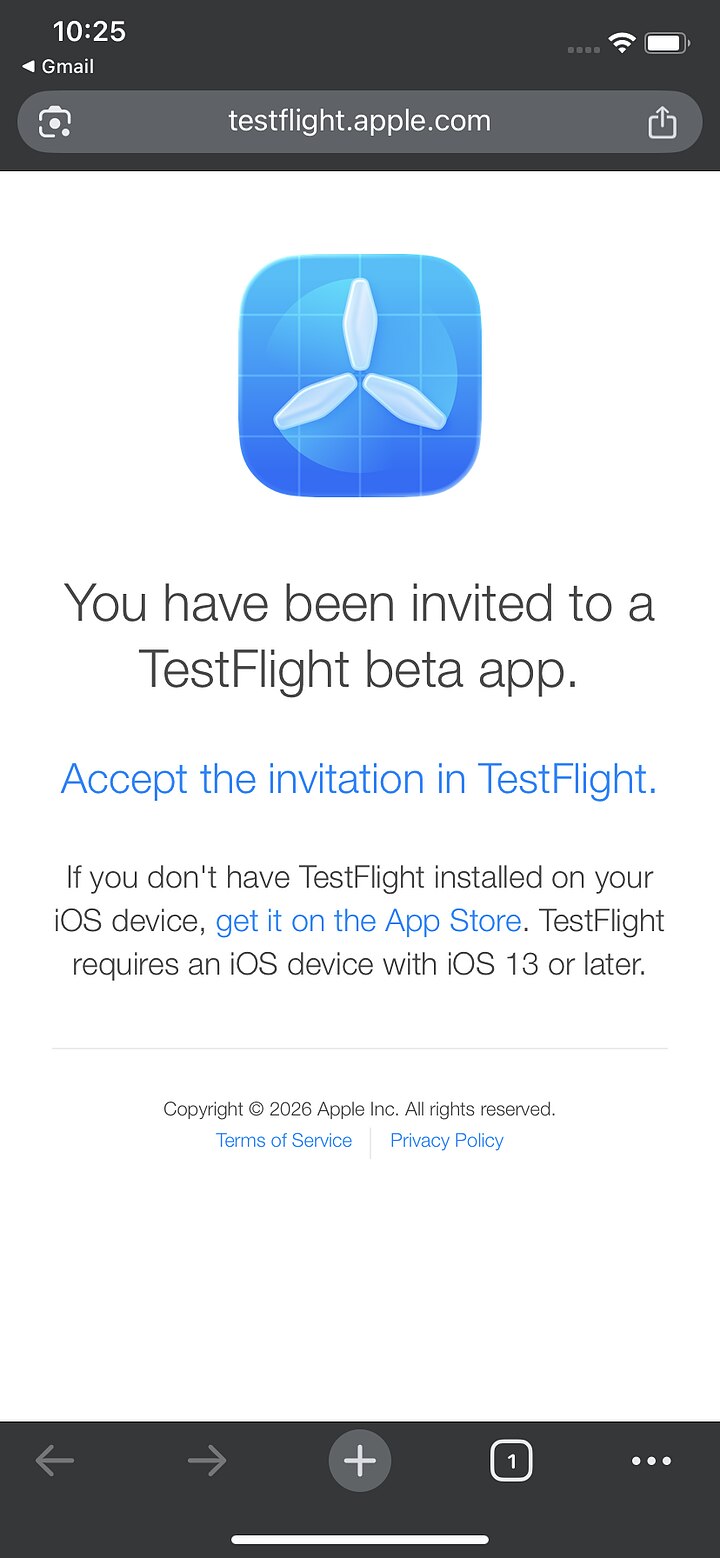
Accept the invite
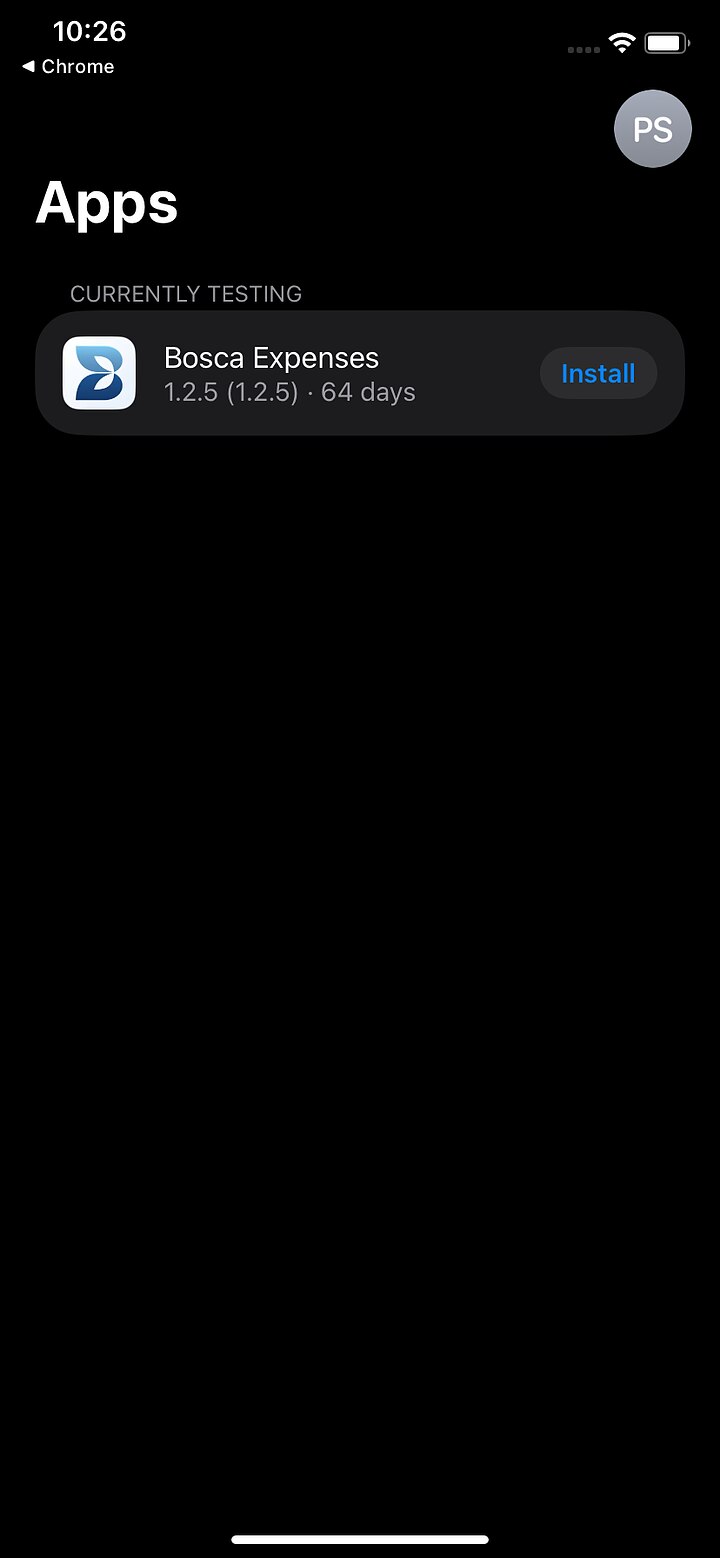
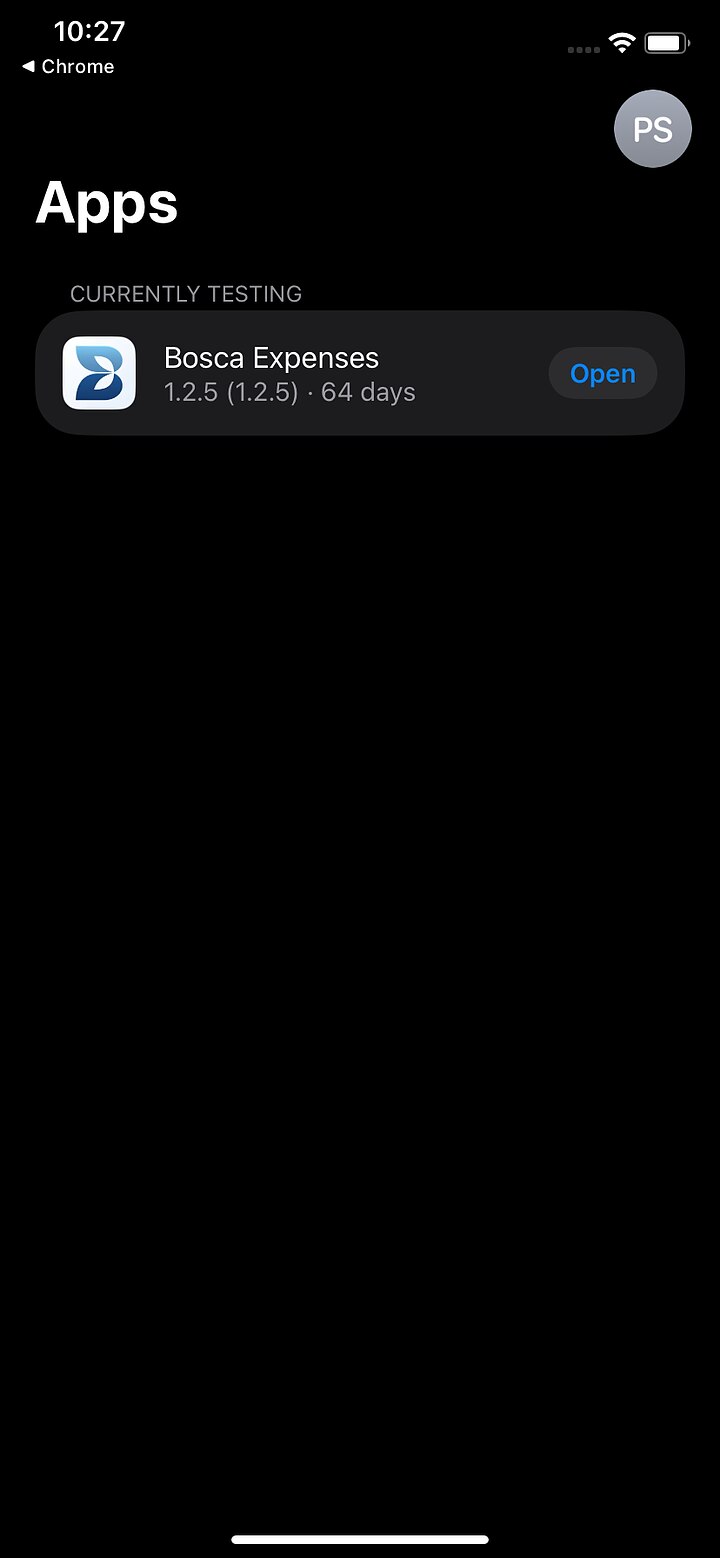
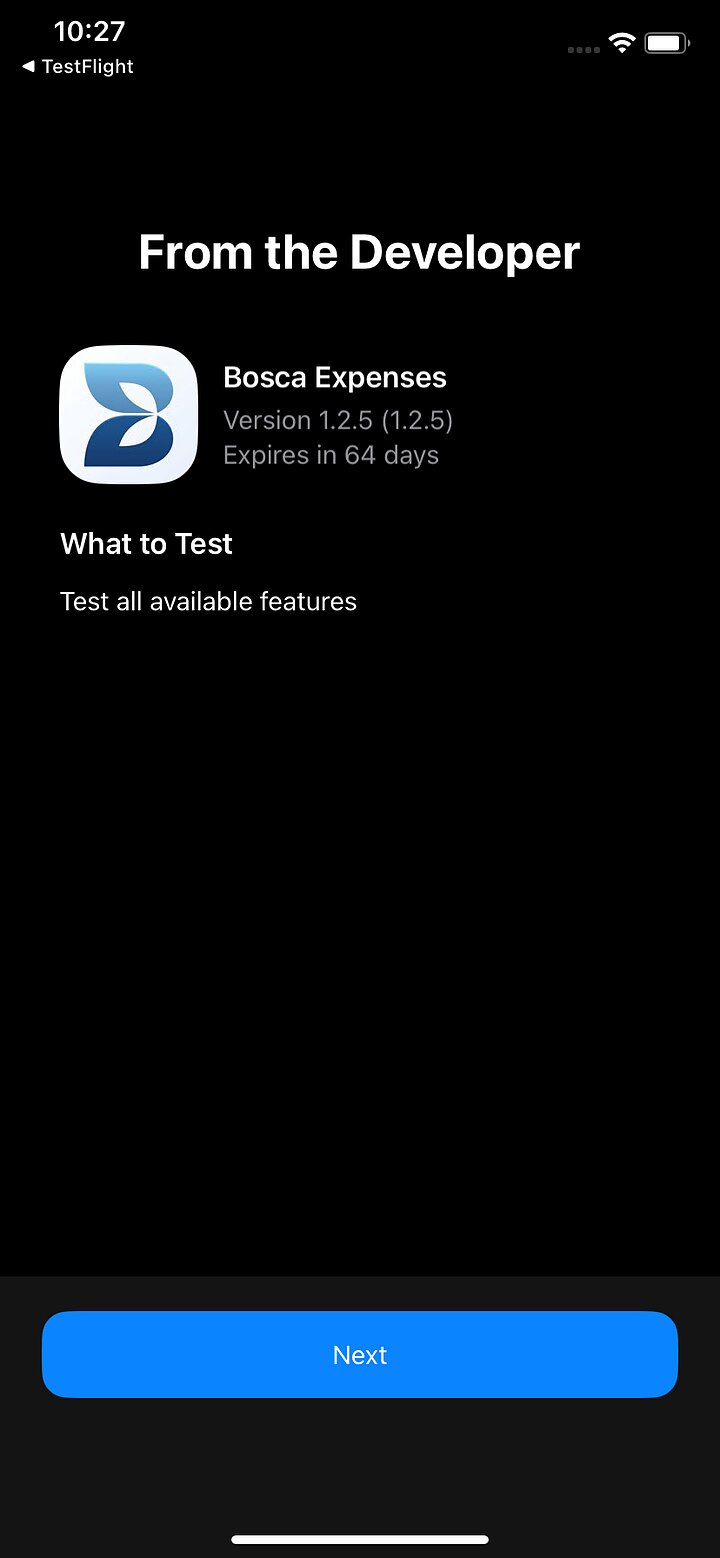
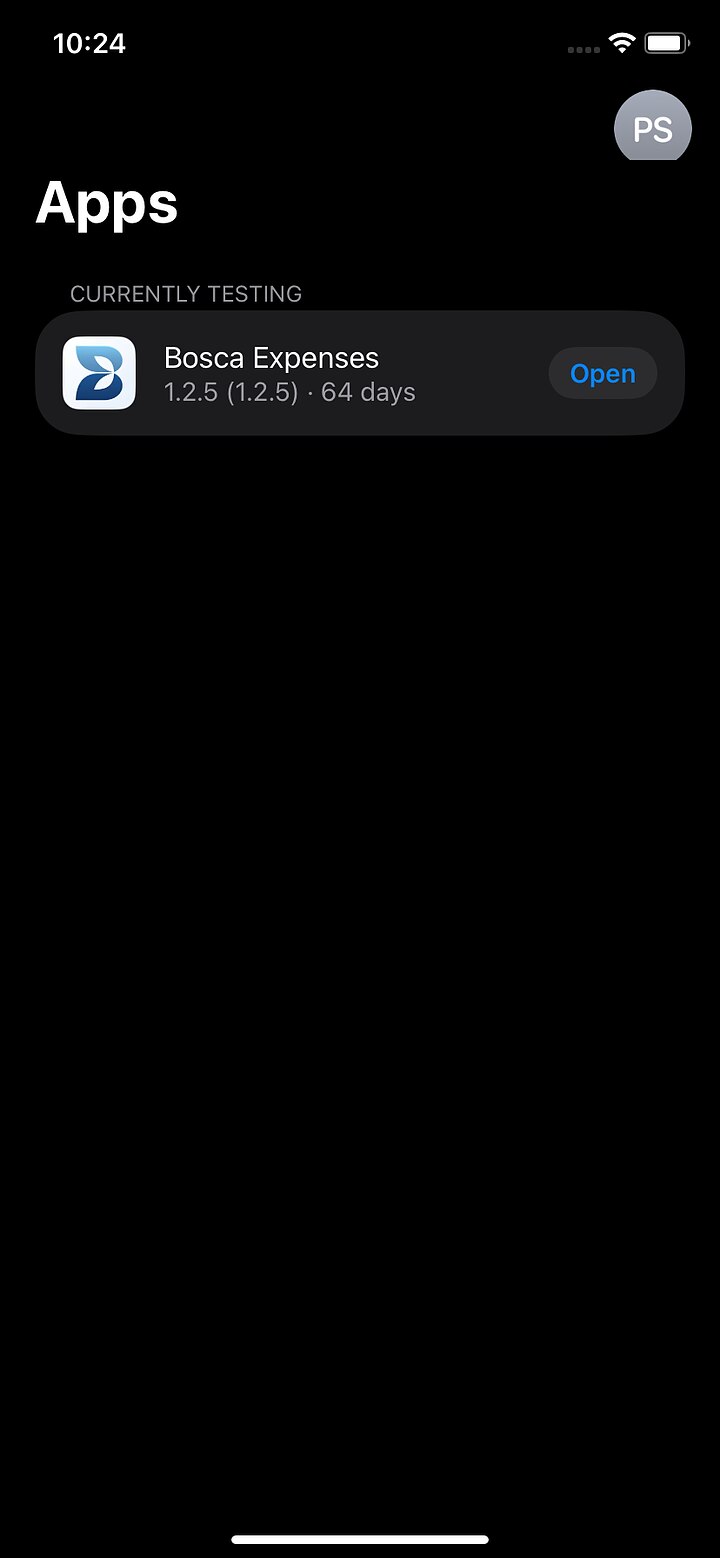
Open the invitation email on your iPhone and tap View in TestFlight. TestFlight opens and shows Bosca Expenses — tap Accept, then Install.
-
Open Bosca and sign in
Launch Bosca from your home screen. Sign in with your Google account, or with Sign in with Apple.
-
Scan your first receipt
Tap the Scan button in the middle of the bottom bar, allow camera access when asked, and photograph any receipt you have to hand. Bosca reads the merchant, date, amount and VAT automatically — check what it got right and wrong. (Want to see the whole scan flow in pictures? It's in the product guide.)
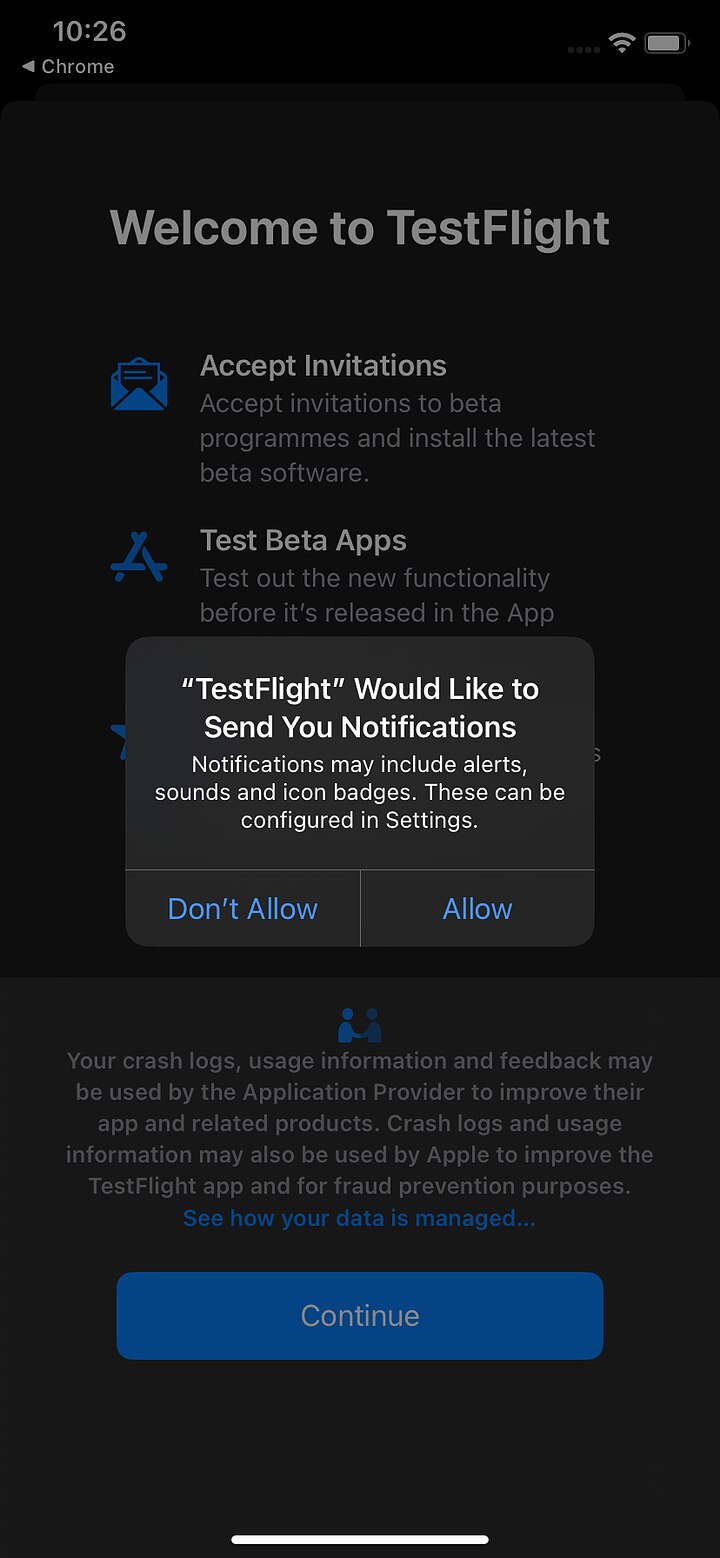
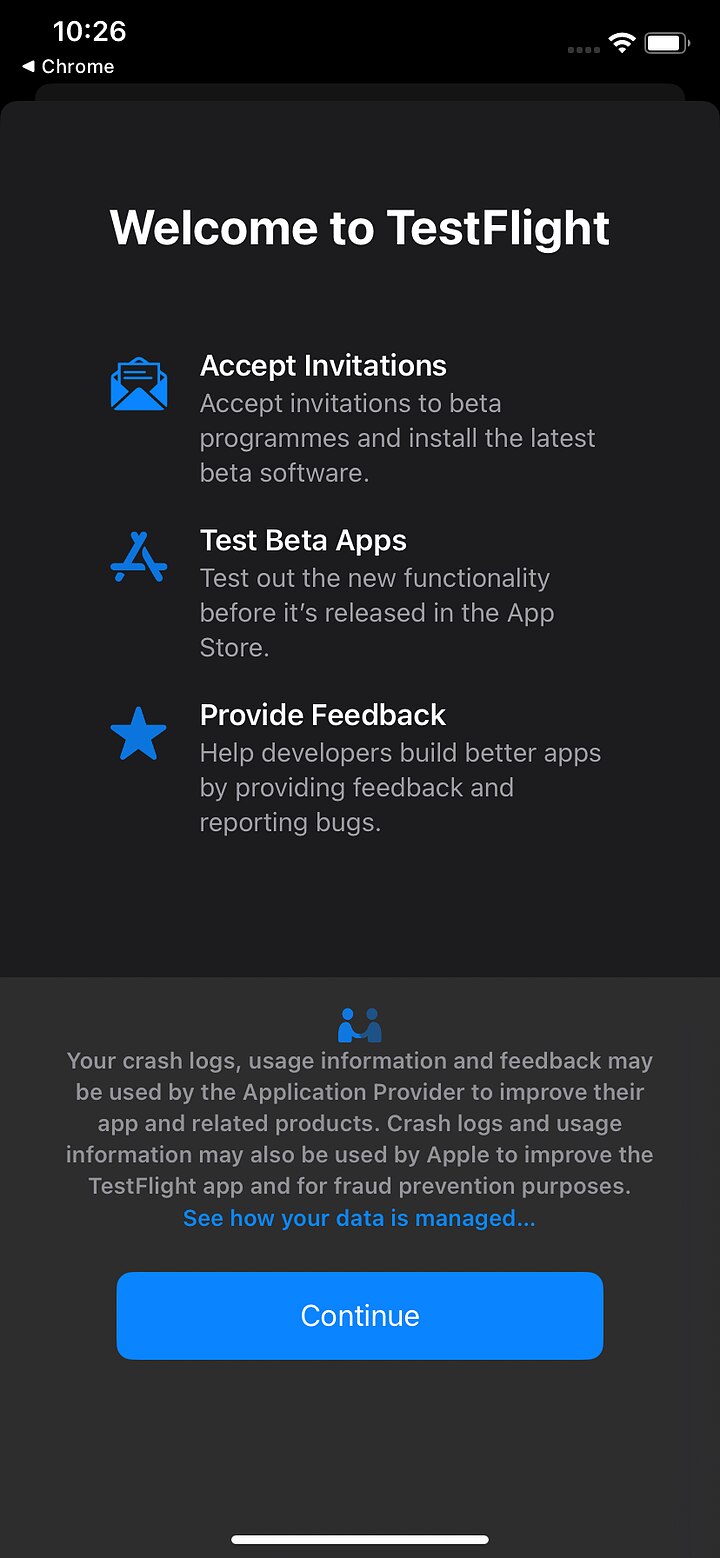
The full install, screen by screen
Step through with the arrows (or swipe on your phone) — click any screenshot to view it full size.
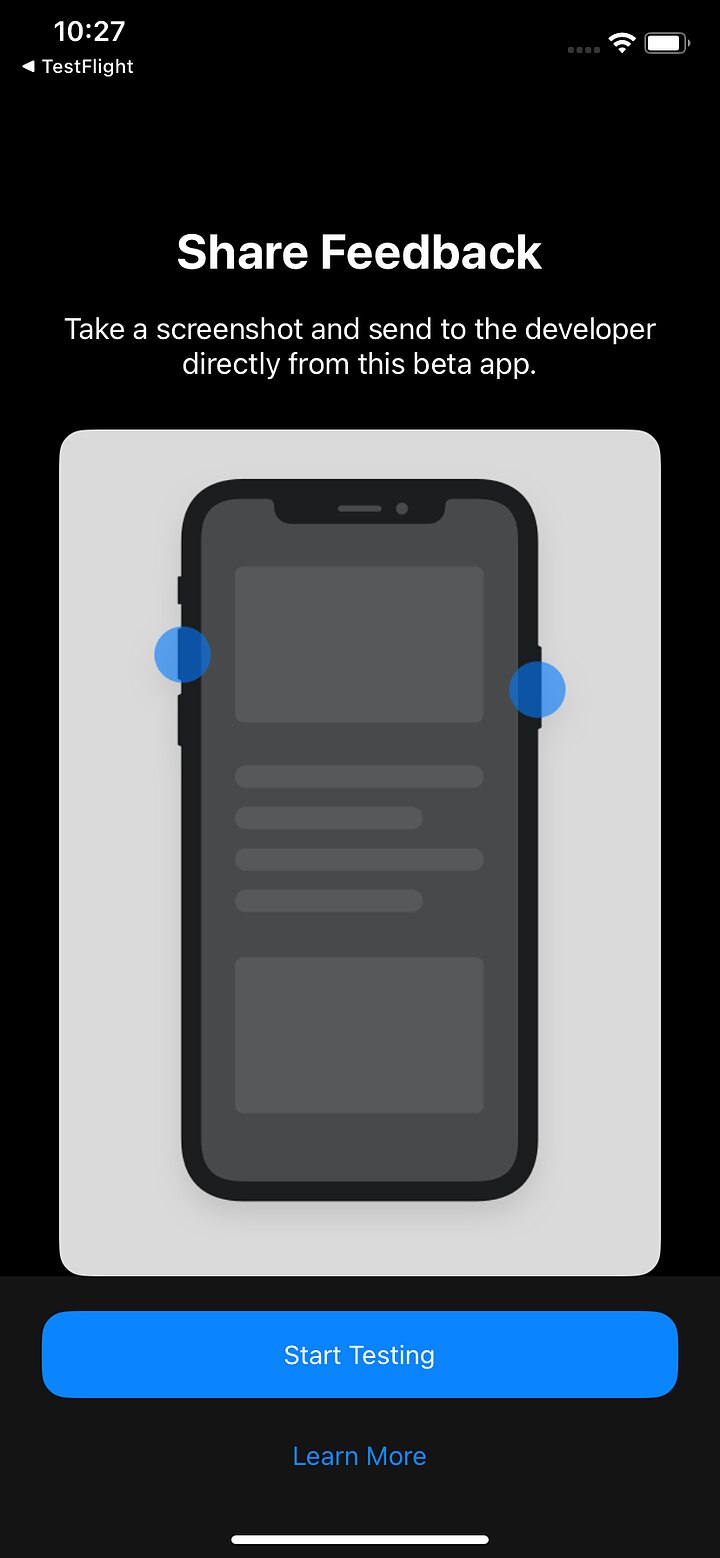
Bonus on iOS: if you take a screenshot inside Bosca, iOS offers a "share to TestFlight" option — that sends the screenshot straight to us with your comment attached. It's the fastest way to report anything visual.
More guides
Browse all the guides — or send us anything odd at support@boscaexpenses.com.