
Install on Android
Getting the Bosca alpha onto your Android phone via Firebase App Distribution — including every scary-looking warning and what to do about it.
🤖 Android setup (Firebase App Distribution)
Android alpha builds are delivered through Google's Firebase App Distribution. You'll accept an invite with your Google account, then install Bosca directly.
-
Find your invitation email
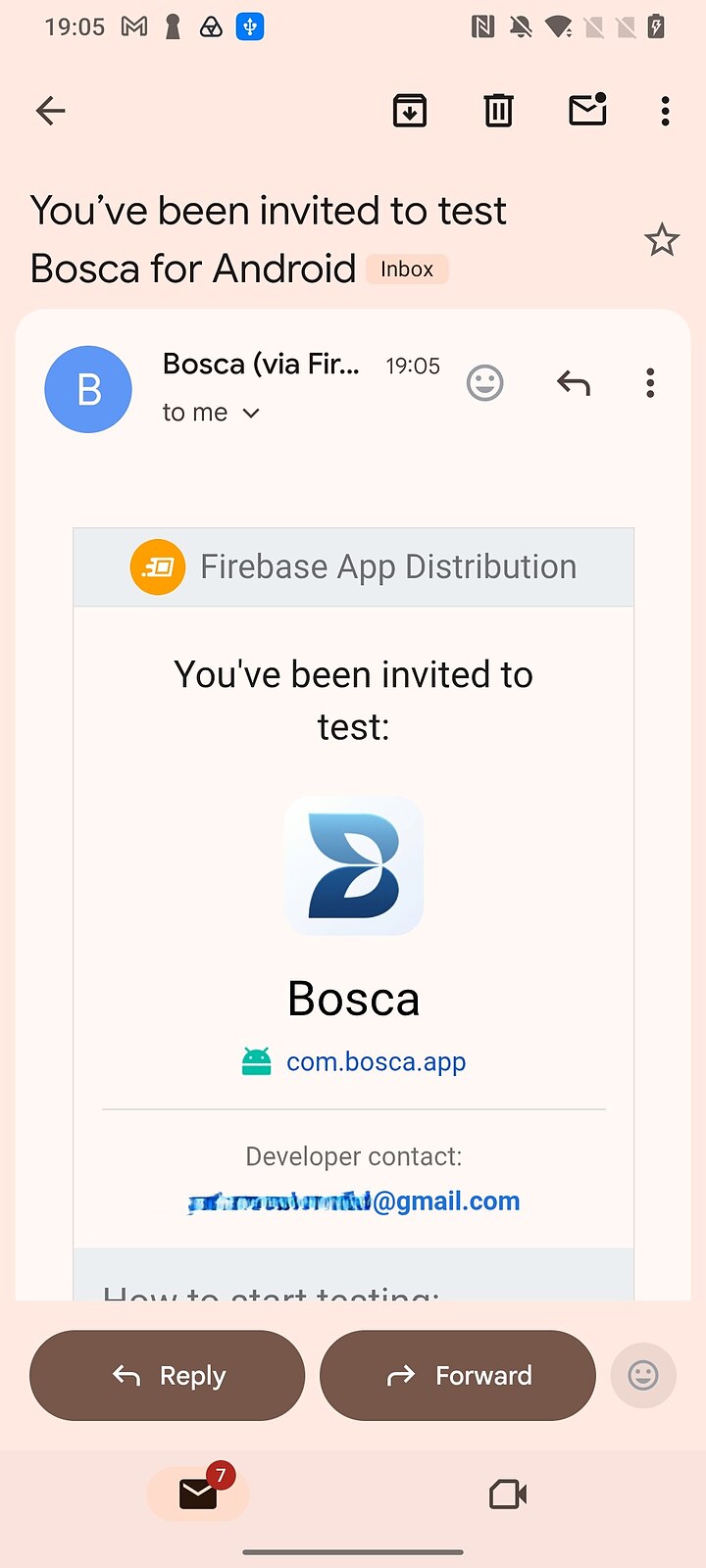
Look for an email titled something like "You've been invited to test Bosca for Android" from Firebase App Distribution. It goes to the Google account address you gave us — check spam if it's missing.
-
Accept the invite
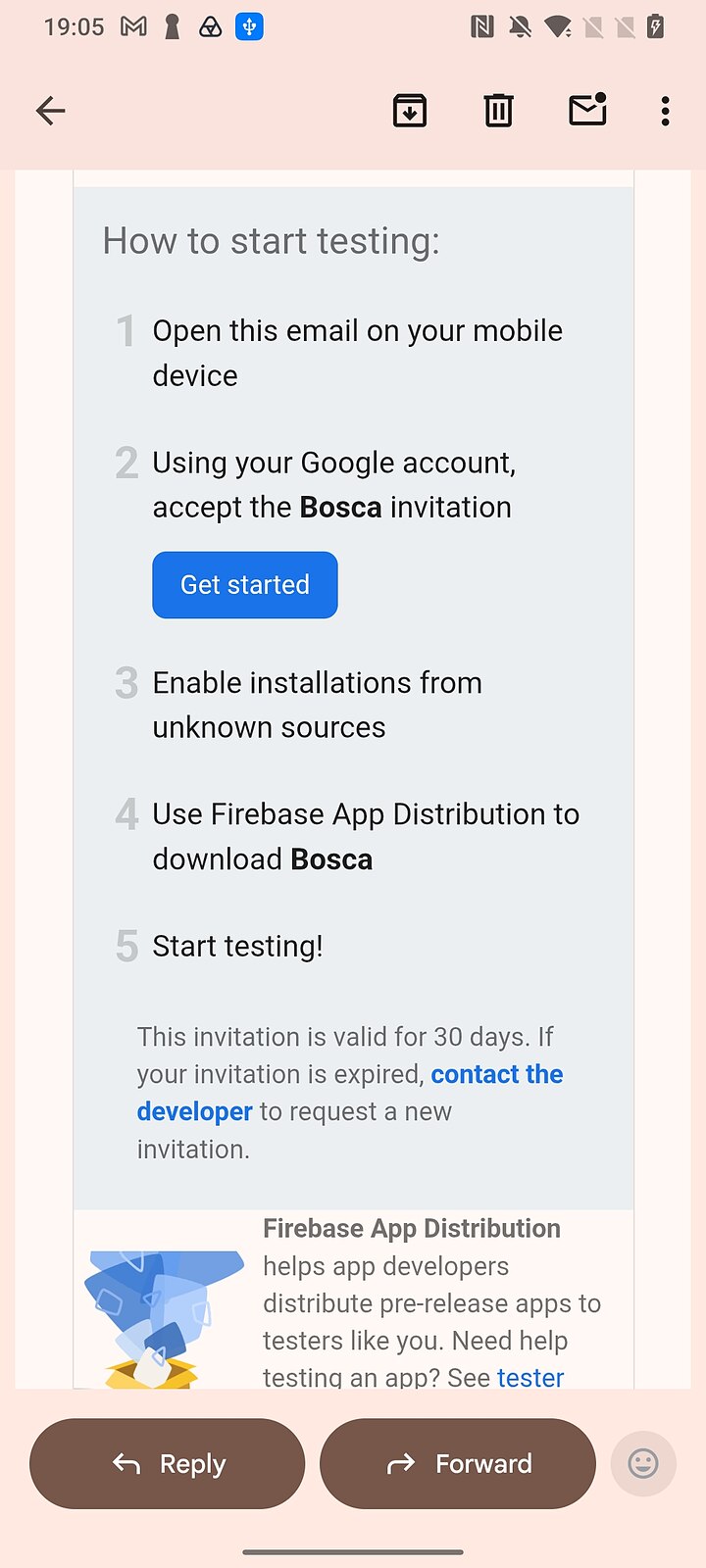
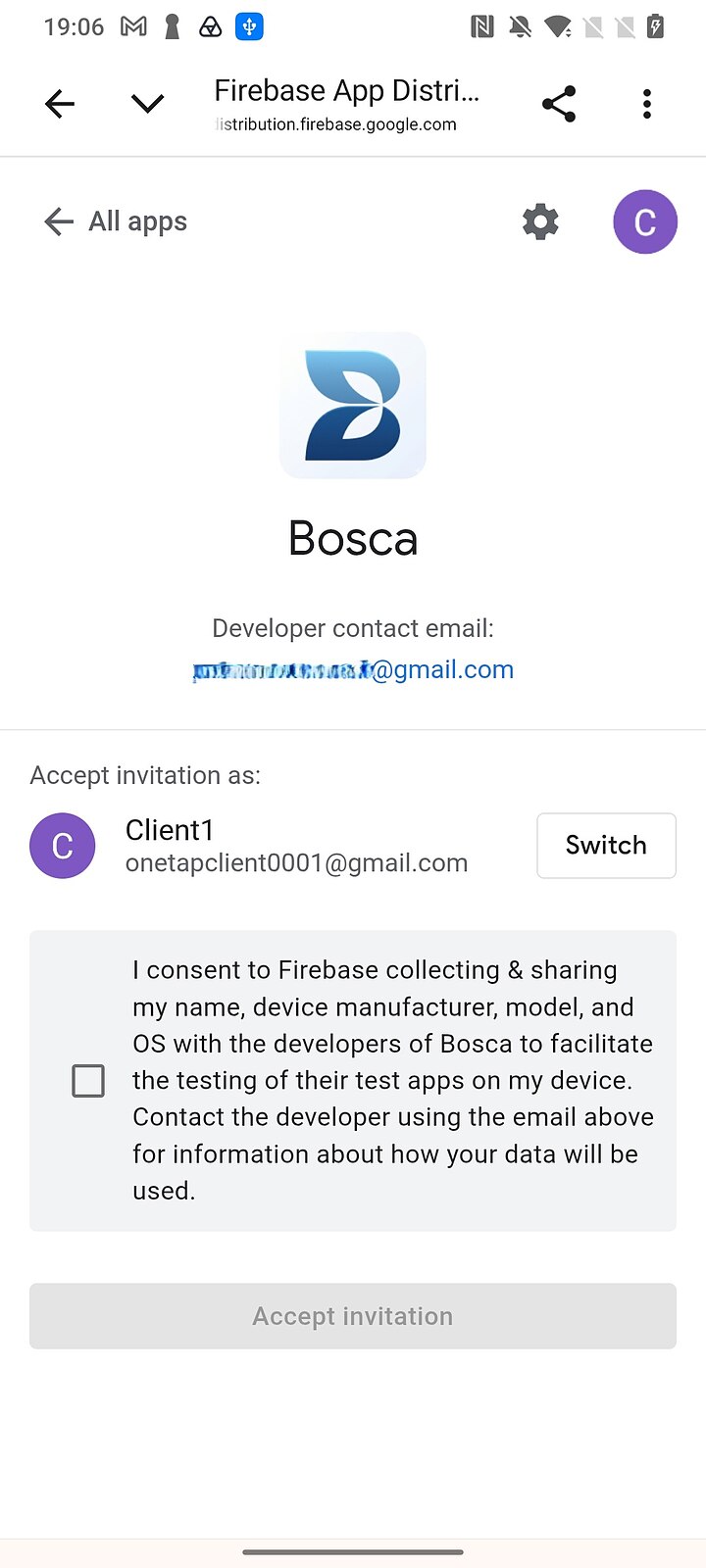
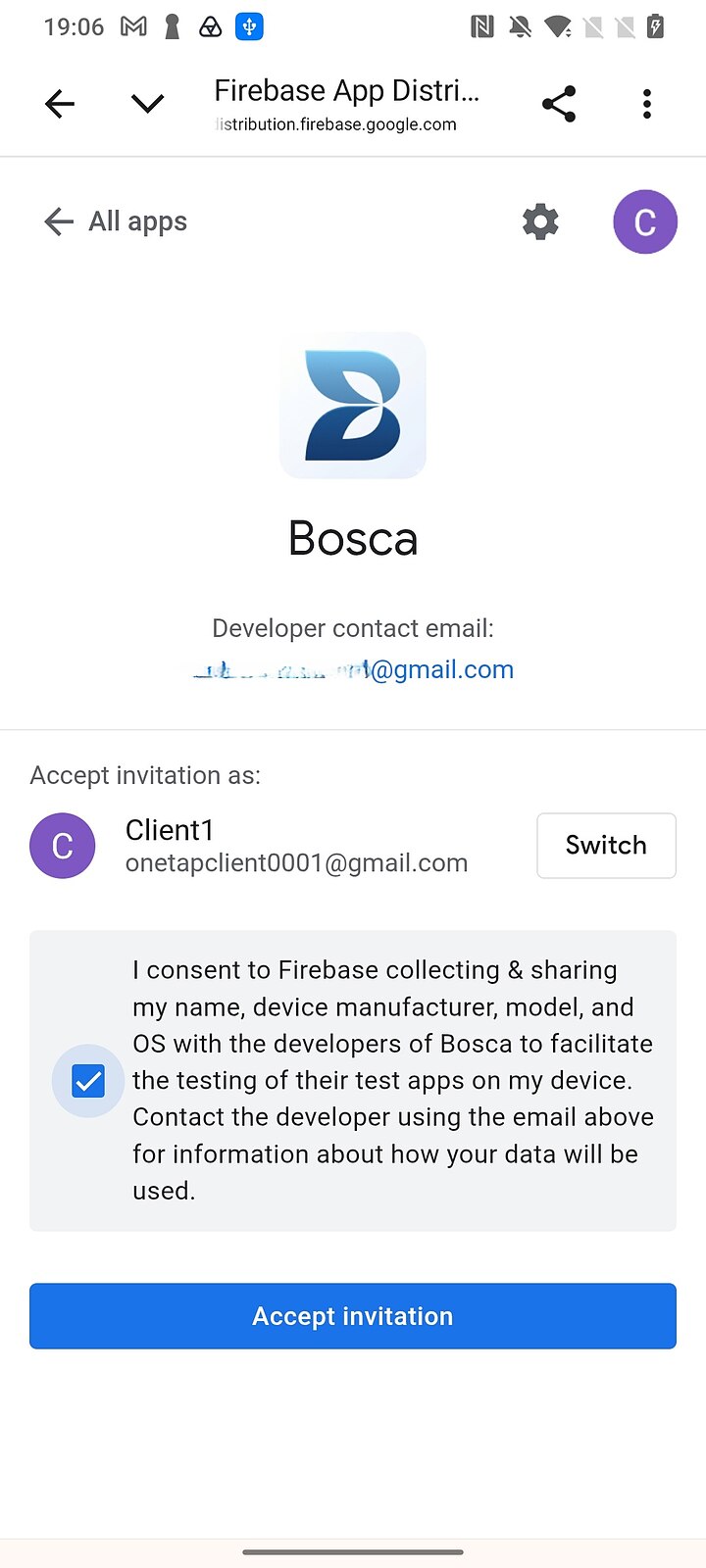
Open the email on your Android phone and tap Get started. Sign in with the same Google account the invite was sent to, and accept the invitation.
-
Download the build
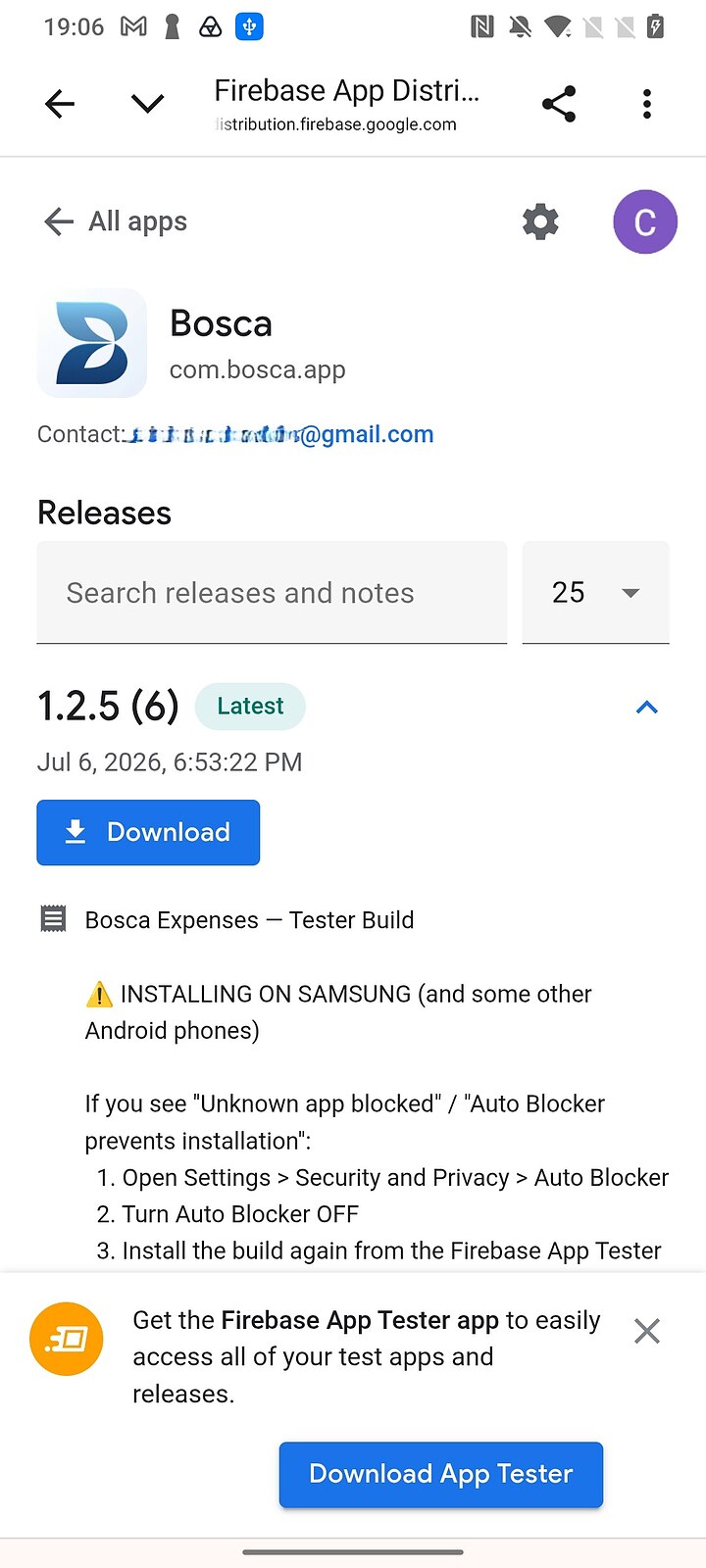
You'll see the Bosca Expenses test build with a Download button. Tap it. (Firebase may offer its App Tester companion app — installing it is optional but recommended, as it notifies you when new builds arrive.)
-
Allow the install — and don't be alarmed by the warnings
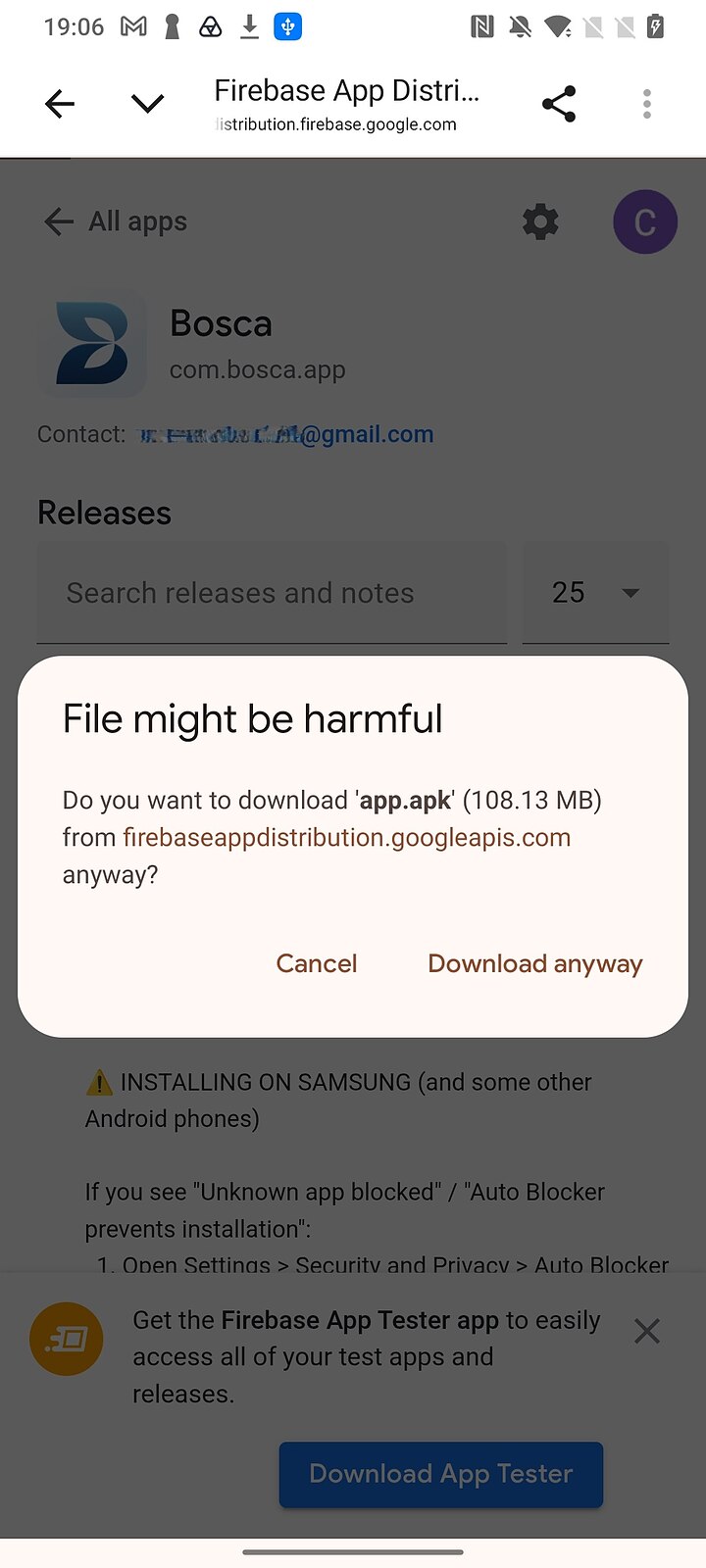
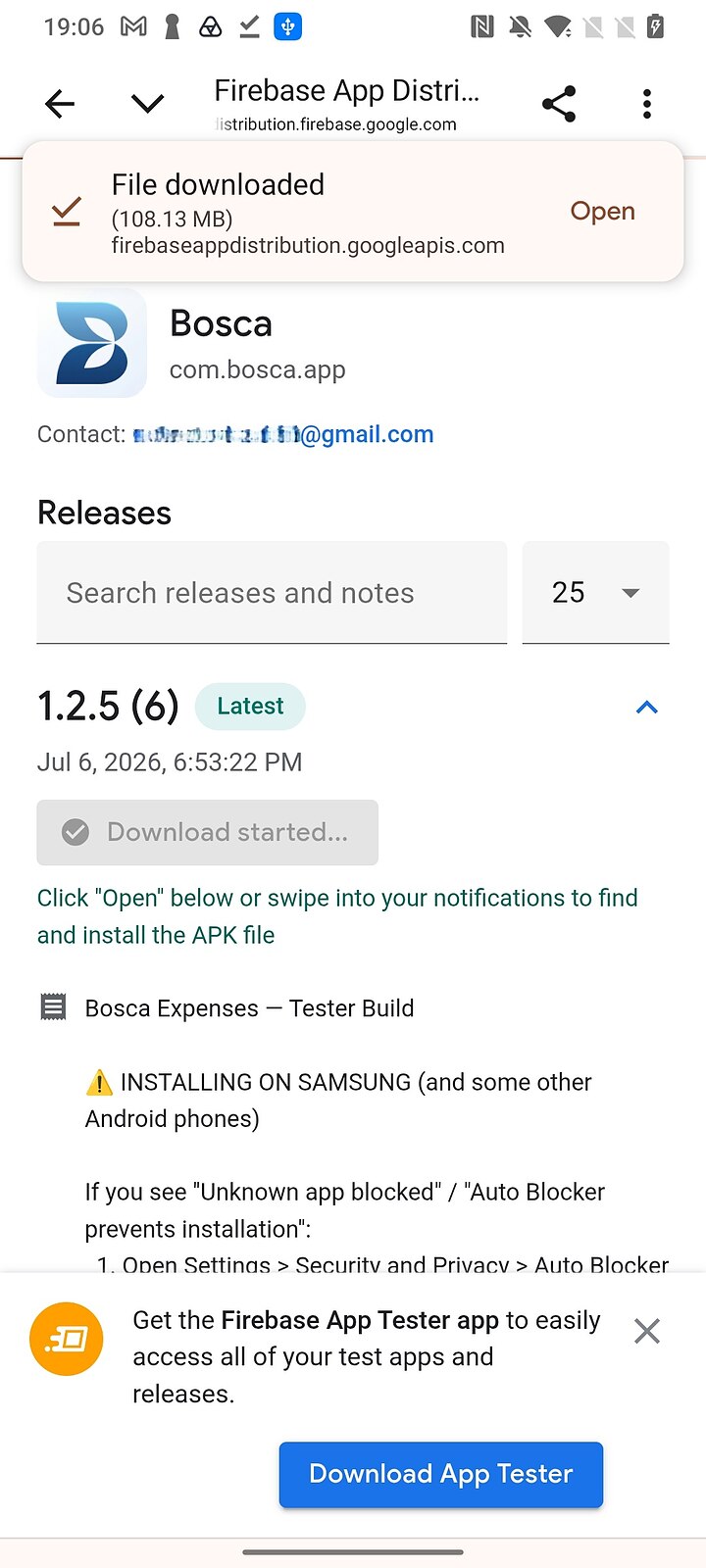
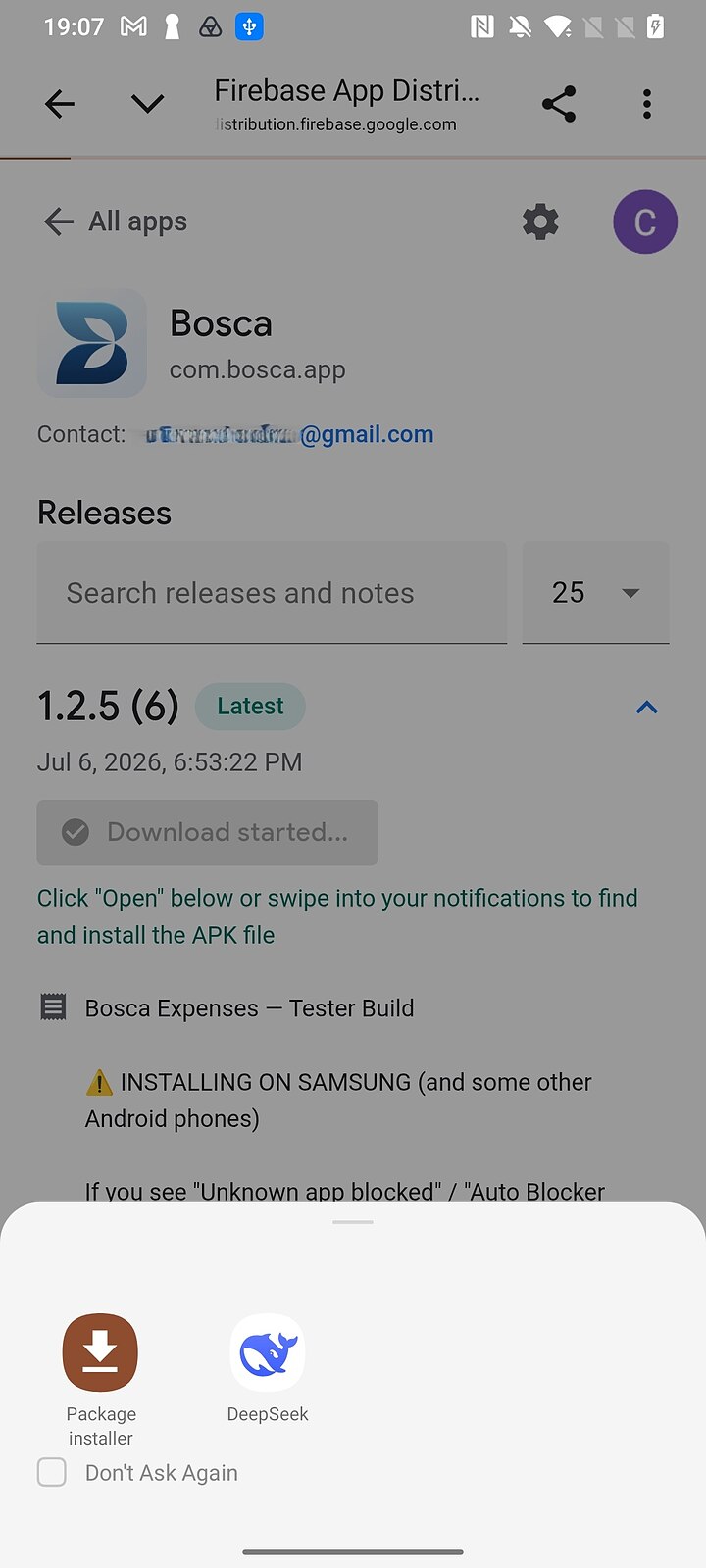
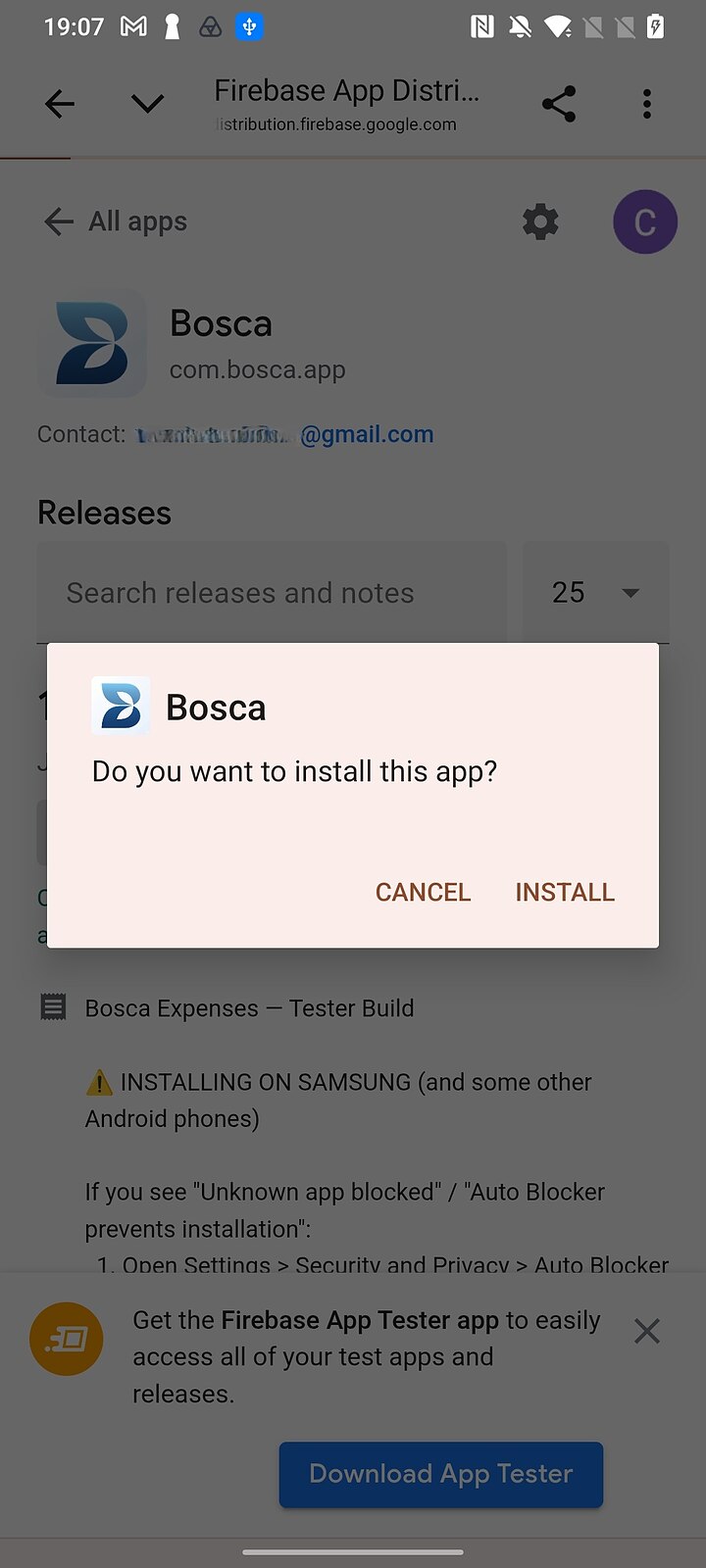
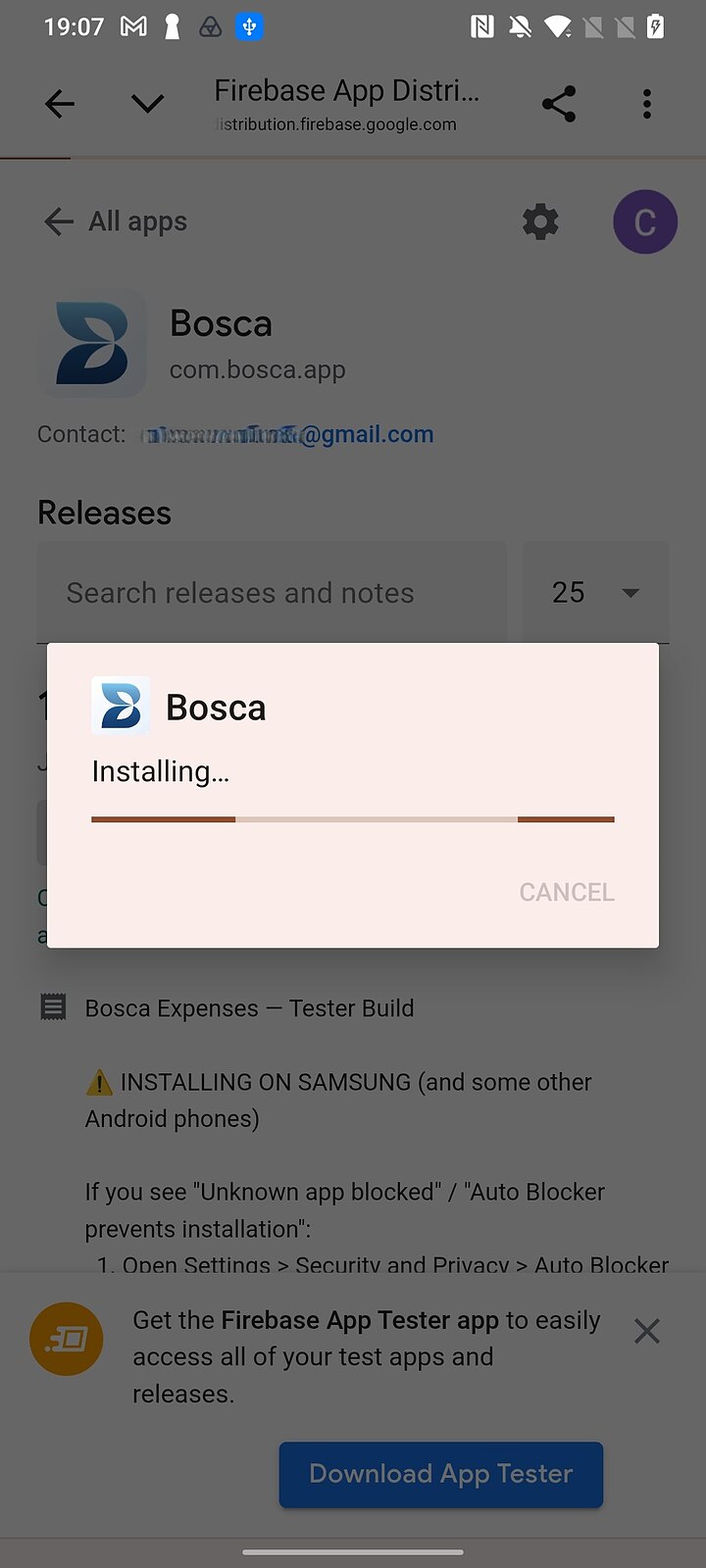
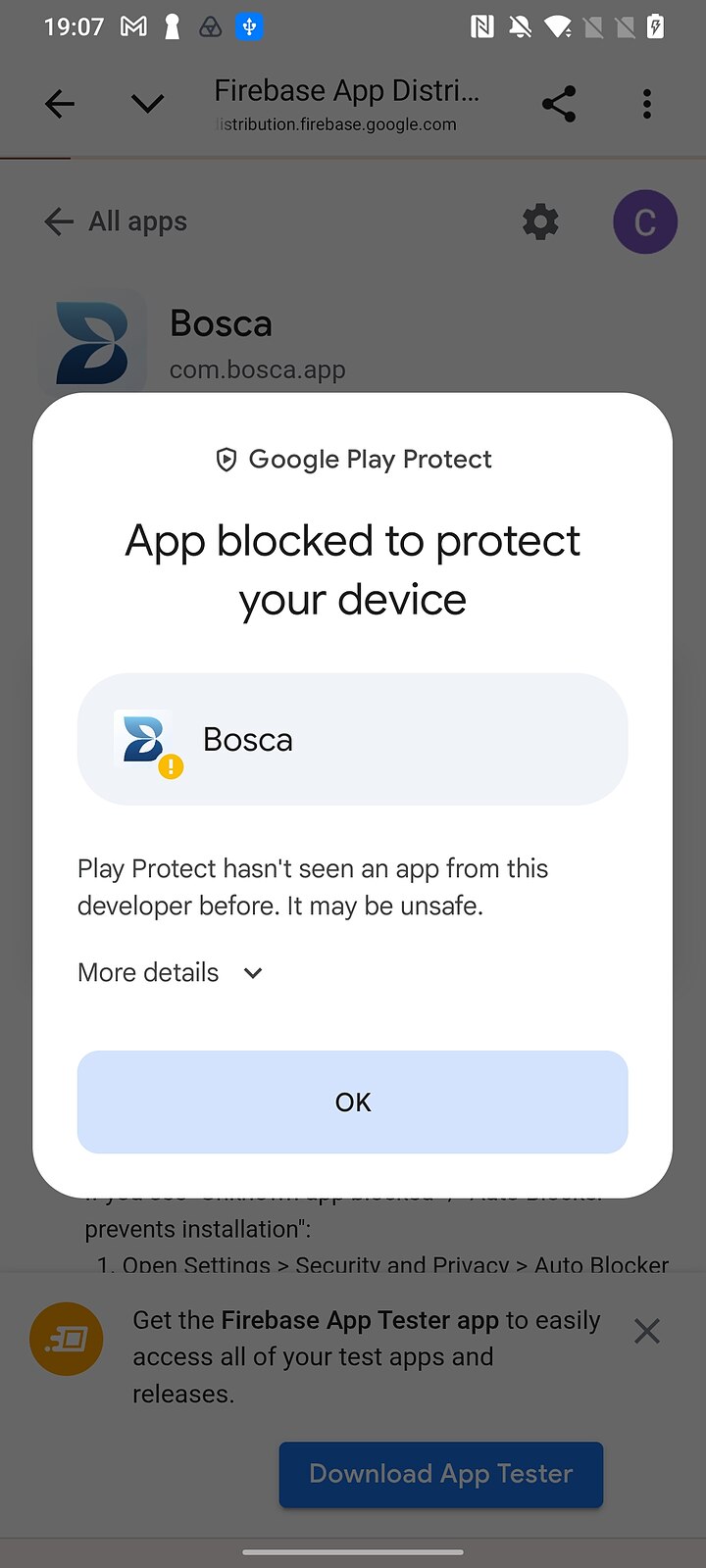
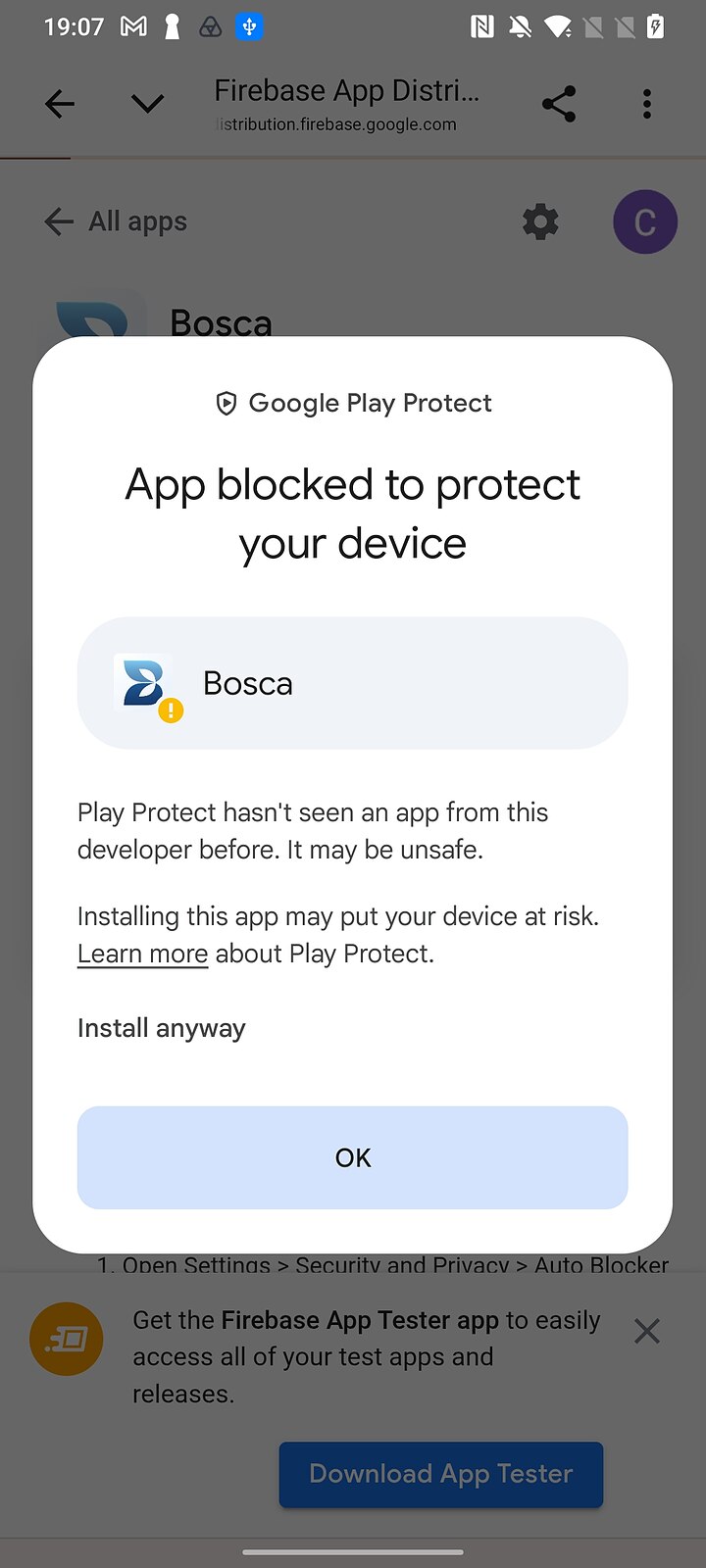
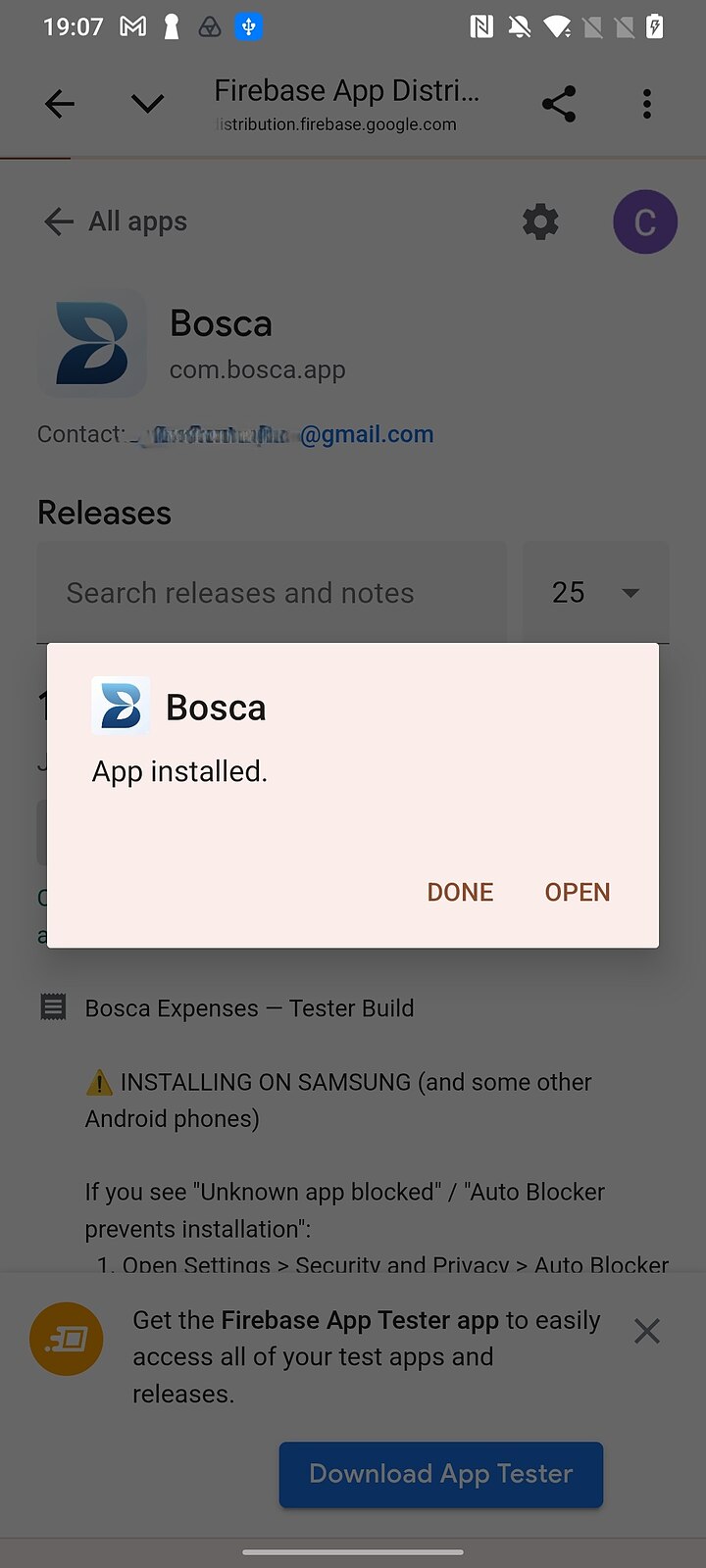
Because this build comes from us rather than the Play Store, Android puts up some scary-looking prompts: Chrome may say the file "might be harmful" (tap Download anyway), you may need to switch on Allow from this source, and Google Play Protect may say it has blocked the app — tap More details, then Install anyway. All of this is normal for pre-release apps and disappears once Bosca is on the Play Store. On Samsung phones, if you see "Auto Blocker prevents installation", turn Auto Blocker off under Settings → Security and Privacy, then install again.
-
Open Bosca and sign in
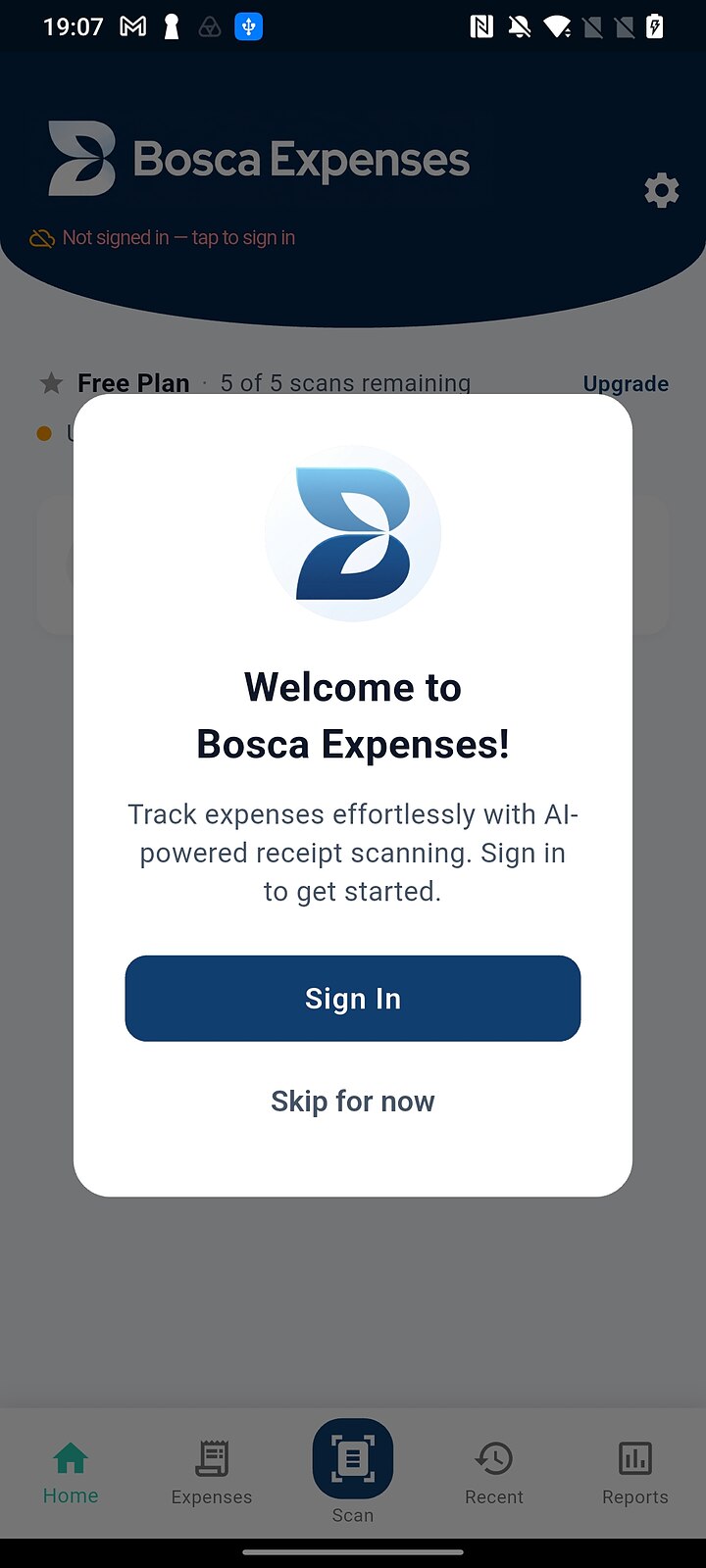
Launch Bosca and sign in with your Google account.
-
Scan your first receipt
Tap the Scan button in the middle of the bottom bar, allow camera access, and photograph any receipt. Bosca reads the merchant, date, amount and VAT automatically — check what it got right and wrong. (Want to see the whole scan flow in pictures? It's in the product guide.)
The full install, screen by screen
Step through with the arrows (or swipe on your phone) — click any screenshot to view it full size. Slides 6, 11 and 12 show the warnings from step 4, so you'll know them when you see them.
More guides
Browse all the guides — or send us anything odd at support@boscaexpenses.com.